
|
This information is intended for advanced users who are familiar with changing metamodel configurations. |
To make metamodel customizations available to only a single model package, apply the customizations to an existing model package with embedded metamodels. The configuration changes will remain confined to this model package.
If you apply your customizations to a single model package, remember to migrate this model package to the latest tool configuration when updating to a new Enterprise Studio software release. Please refer to Updating to a new Bizzdesign Horizzon release for more information.
The model package you want to apply the customizations to can be the model package you initially started with when opening the metamodel, but it can also be a different model package as long as it has the same tool configuration embedded as the model package from where you opened the metamodel. If you want to apply the customizations to a model package with a different custom configuration, you must first synchronize the metamodel with that model package's configuration before applying.
|
|
You cannot apply customizations to a regularly stored model package (XMA), or to a project. A project is a collaboration based on a model package. Any changes to its configuration must be made based on the master model package. After that, you can update a project with the configuration changes of the master model package. |
Steps:
- On the Metamodel tab, in the Install group, click Apply.

If you have not yet validated the customizations, validation is automatically performed first. If validation fails, a window shows the number of errors and warnings. Details of the errors and warnings are shown in the Messages window. Fix the problems, and validate your customizations before applying them. - Select the model package you want to apply the customizations to and click OK.
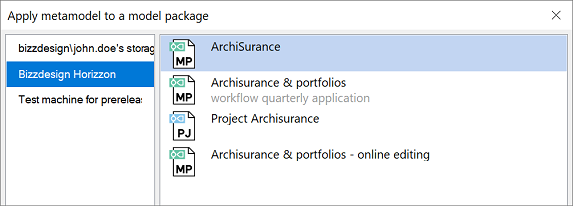
- Depending on the situation, the customizations are directly applied to the selected model package (may take a few seconds), or first a message window appears indicating:
- that the selected model package is open and needs to be closed first, or
- that the selected model package has outstanding changes that need to be committed first, or
- a combination of both:
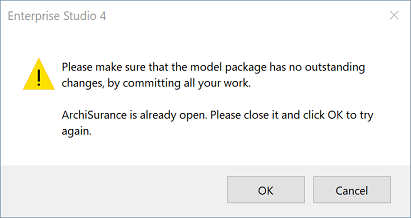
If you have not yet set a custom version for the metamodel, you will also see a message about that. However, it is optional to set a version.
- After completion, a confirmation message appears. Click OK.
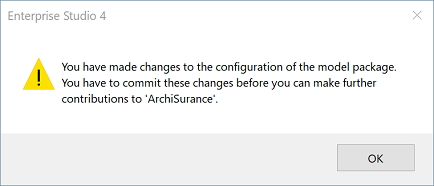
The model package with the customized configuration is now opened in a new instance of Enterprise Studio.
If you first see the following message instead of the one above, it means the model package you just closed still has uncommitted changes. Reopen the model package, commit the changes and close it again. Then retry to apply the changes.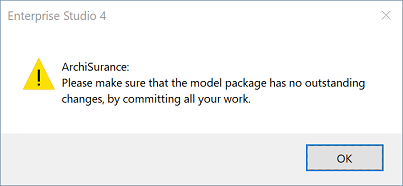
- Depending on the type of the model package, continue as follows:
If the model package is a tracked package (stored in your personal storage), you are now ready. Close the metamodel package without saving, and continue working on the model package with the changed configuration.
If the model package is a shared package (stored on Horizzon), share the customizations with the other users:
- On the File tab, click Commit.
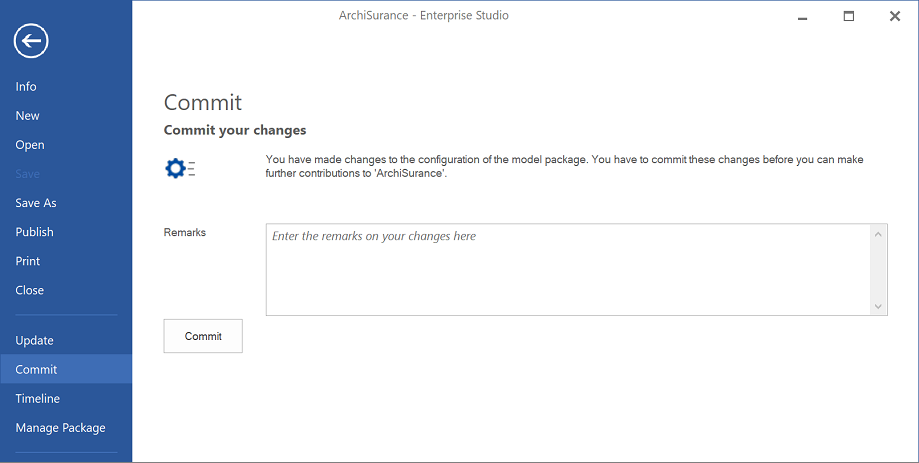
- In Remarks, type a comment about the configuration changes to clarify the commit, and then click Commit.
After you have committed the customizations, your contribution will be available for other users to include in their copy of the model package. - Close the metamodel package without saving.
- On the File tab, click Commit.