
The Process architecture view is a special view in the ArchiMate® model that can be used to create a process landscape map. It is a common starting point for process design and all activities related to business process management (BPM). It helps to identify and structure an organization's processes. With process landscapes, you can easily gain an overview of your main processes. The Process architecture view helps you update and maintain the layout of the landscape map easily.
The following ArchiMate® objects can be used in the Process architecture view: Business processes, Business activities, and Business interactions.
|
|
To create a landscape map that allows all types of objects, use the Nested view. |
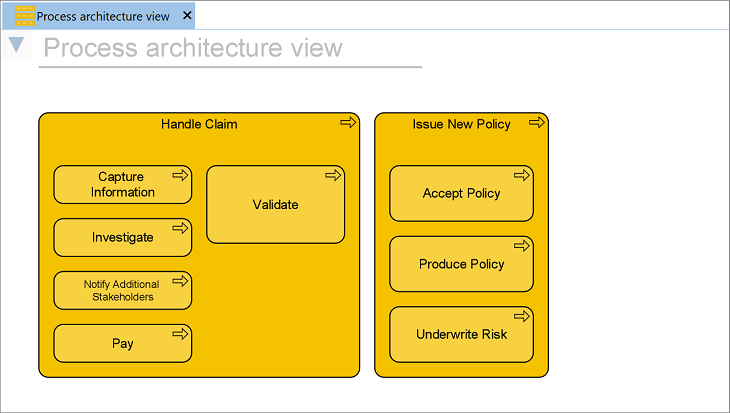
Example of a Process architecture view
There are two ways to populate the Process architecture view. The choice you make depends on how you want to model and maintain the landscape map, as well as how the data in your model is structured. With both approaches, you can create new objects in the view if needed.
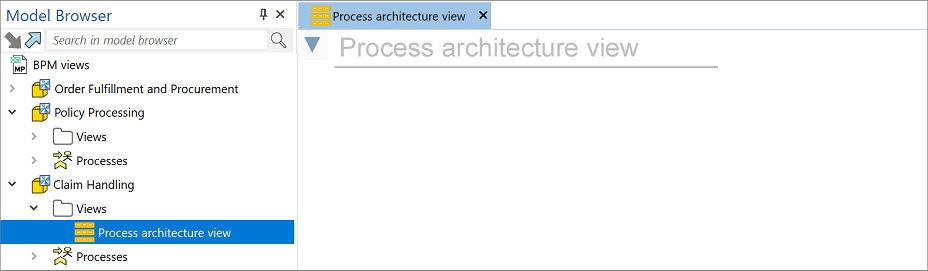
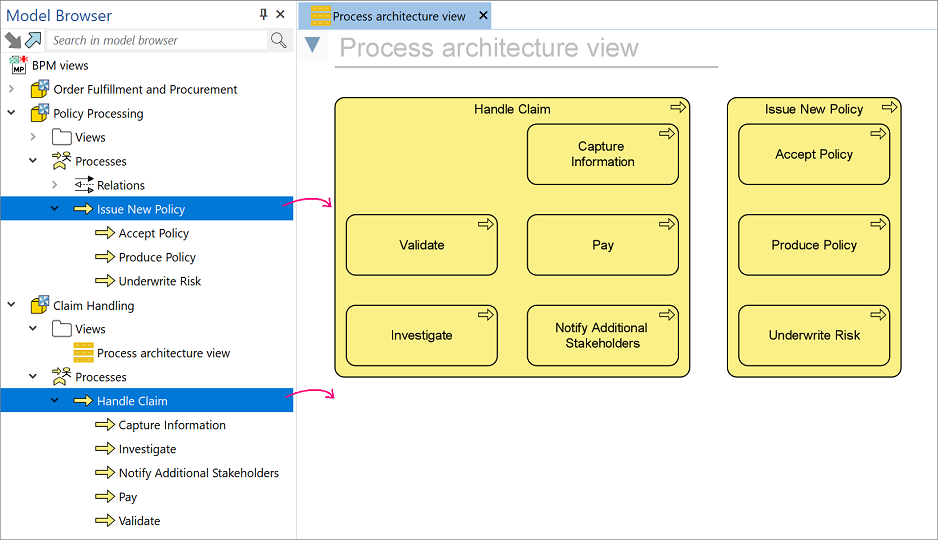
Populate the view by dragging objects from different levels and/or sections in the model onto it and creating new objects. Manually structure and nest the objects in the view to add hierarchy. When updating the view, the objects are always rearranged, conforming to how they are organized in the view, not how they are organized in the model. The objects are laid out following the view's layout settings.
Populate the view by selecting the 'starting point' in your model package containing the complete structure of objects you want to include. This can be useful if you have structured all the needed objects in one place in your model. The objects in the view are always organized according to their hierarchical structure in the model and when the view is updated. Any hierarchical changes made in the view will be ignored. The objects are laid out following the view's layout settings.

| This populating method cannot be used on objects stored in your model package's 'Collections' folder. This folder is present if you have included external objects and/or Horizzon-created objects in your model package. These objects do not have a hierarchy in the model browser. Use the drag-and-drop approach to use these objects in the view. |
Both approaches are illustrated below, using processes from the example model package that you can download at the bottom of this page.
 and click
  . Any changes you make will be directly visible in the view. Close the settings window when you are done.
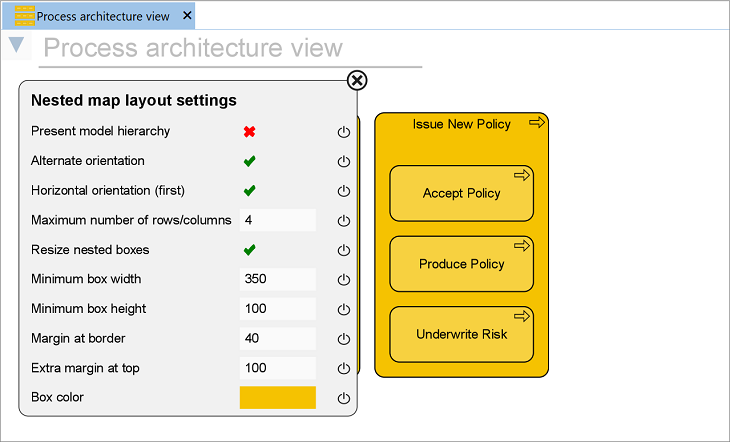
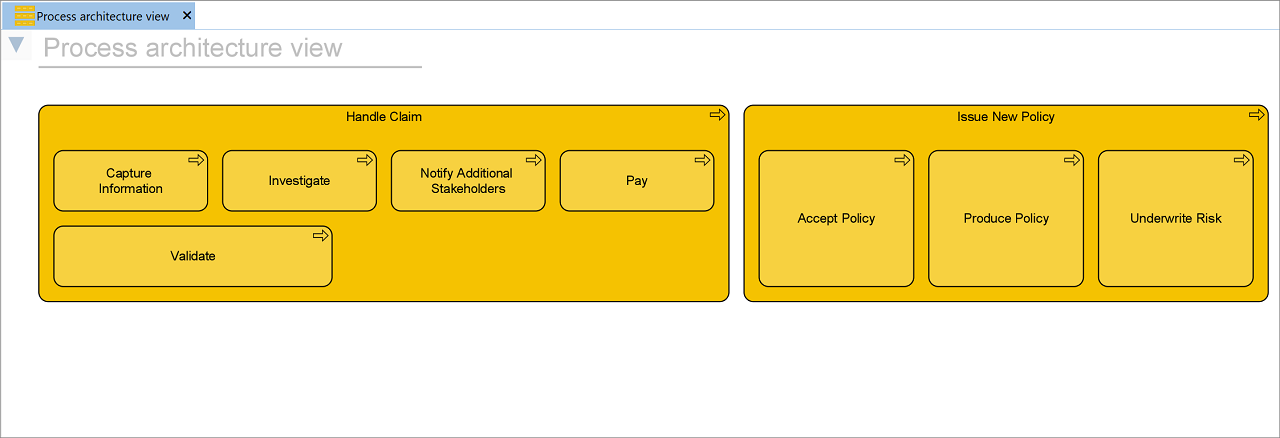
The result is a Process architecture view displayed following the latest settings. Example:
The "Order Fulfillment and Procurement" model from the example model package is used for this procedure. All processes are located in one location. You can download the model package at the bottom of this page.
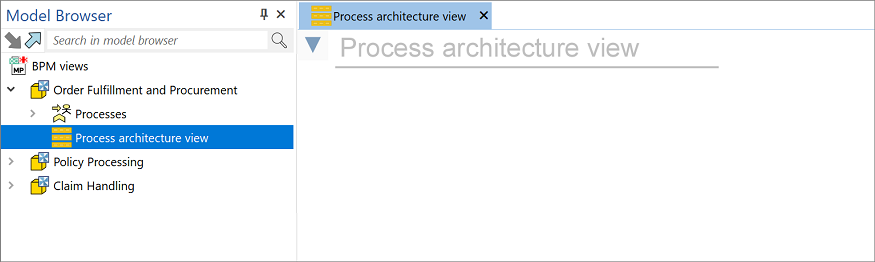 to open the view's canvas menu, and then click to open the layout settings.
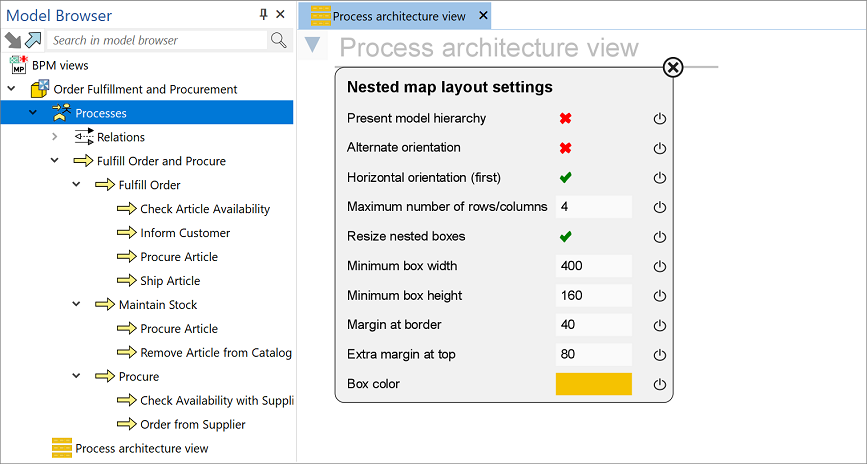
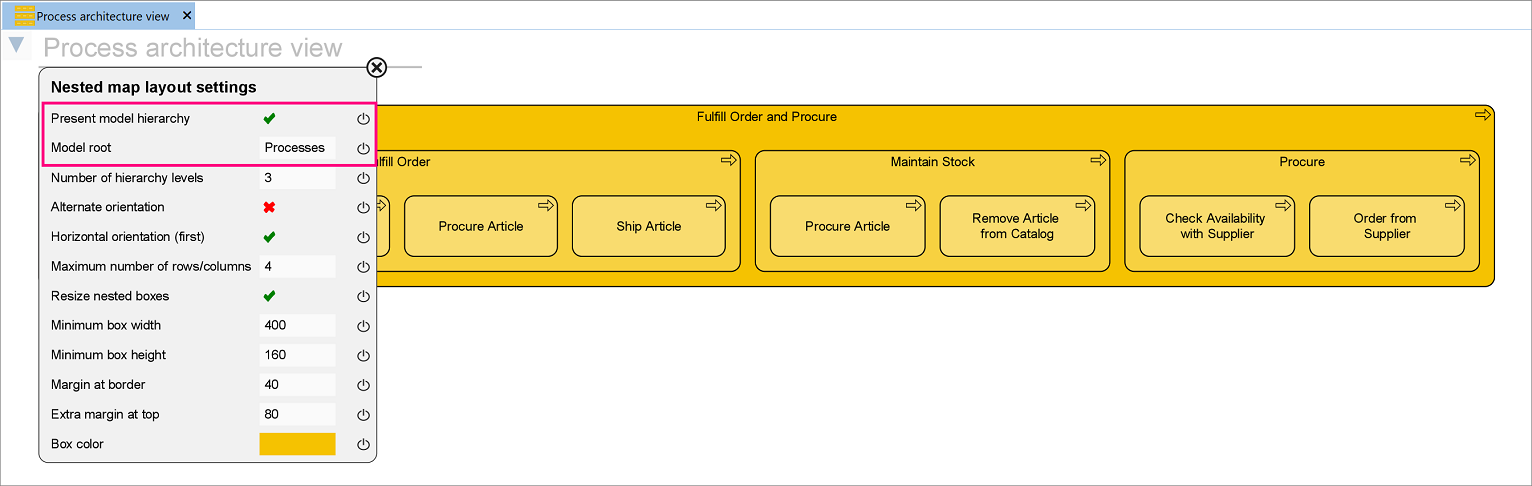
 to do this.
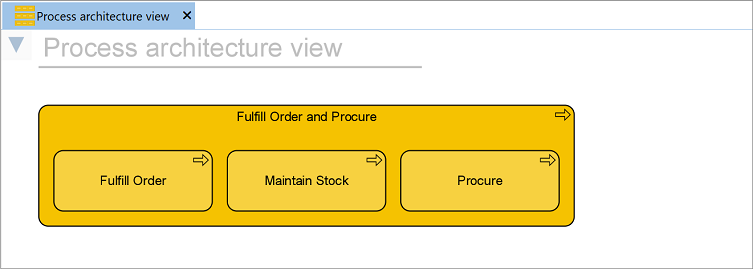
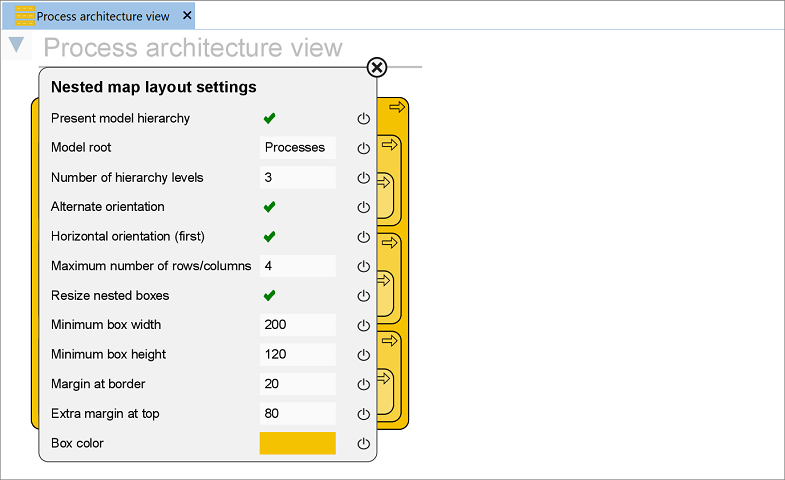
The result is a Process architecture view displayed following the latest settings. When new objects are added to the model root structure or deleted from there, click  in the canvas menu to refresh the view. New objects will be included, and deleted objects will be removed from the view. Example:

Download the example model here, including SIPOC, IGOE, and Process architecture views:
BPM views - SIPOC-IGOE-Process architecture.xma
ArchiMate is a registered trademark of The Open Group.